Products & Catalog
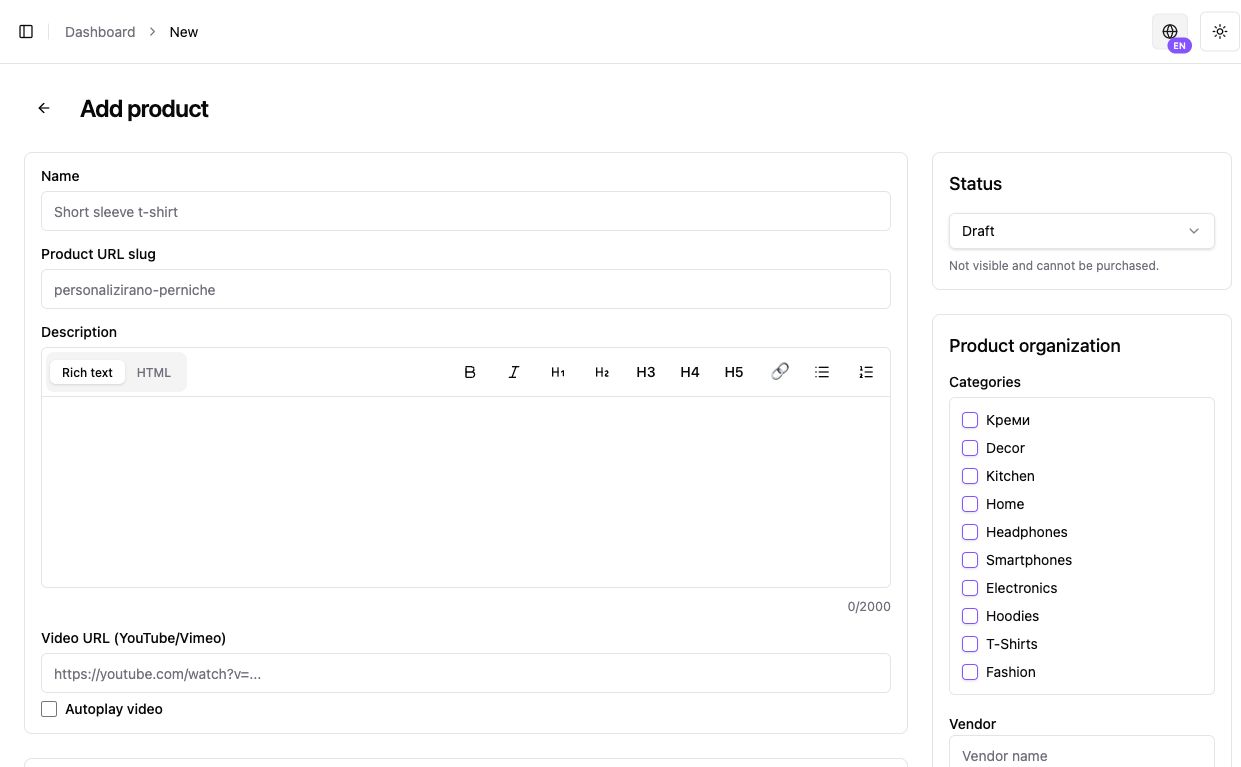
Add a product in the CMS
Section titled “Add a product in the CMS”- Open Products → Add product and enter name, description, price and status.
- Choose the appropriate fulfillment fields. Business supports its approved physical/digital/deposit paths; Individual must follow the digital-only guide.
- Review tax category, media and variants before saving. Keep a new product draft until accurate.
- Open the product in the storefront or a TEST checkout context. If missing, check active status, store and variant. A preview is not a completed order.
A reliable checkout starts with an accurate product. Before sharing a link or launching the store, make sure price, fulfillment type, inventory, and tax settings are correct.
What a product contains
Section titled “What a product contains”Core information
Name, description, status, brand or vendor, tags, and Macedonian/English content.
Price and tax
Regular price, compare-at price, store currency, and tax class.
Images and SEO
Primary image, additional images, and information used for correct display and search visibility.
Inventory and SKU
Quantity, inventory tracking, SKU, and variant-specific values.
Choose the correct fulfillment type
Section titled “Choose the correct fulfillment type”Physical product
Section titled “Physical product”Use this when the product must be shipped. Fulfillment status matters both for the order and for payout eligibility.
Digital product
Section titled “Digital product”Use this when no physical delivery is required. Digital products do not use physical inventory in the same way as standard goods.
Deposit
Section titled “Deposit”Use this when you charge only part of the full value in advance. Deposit payout handling differs from a physical product that still needs shipment.
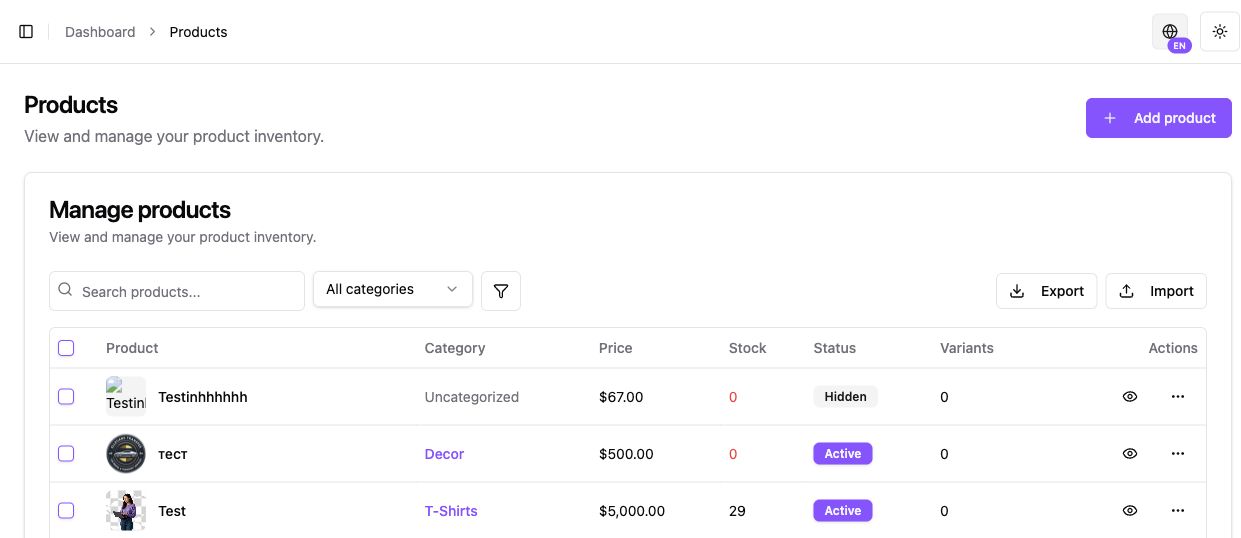
Variants and attributes
Section titled “Variants and attributes”Use attributes and variants for size, color, material, or another option.
A variant can have its own:
- SKU;
- price;
- quantity;
- active/inactive state.
At checkout, Kordiva verifies that the product and selected variant are active and belong to the same store.
Categories
Section titled “Categories”Categories organize the catalog and can contain subcategories. Use customer-friendly names rather than internal warehouse or ERP labels.
Before publishing
Section titled “Before publishing”- Verify the price — Especially if the store currency was changed previously.
- Check images and description — The customer should immediately understand what they are buying.
- Check inventory or fulfillment type — Physical, digital, and deposit products are not handled identically.
- Check the tax class — The merchant remains responsible for correct tax treatment.