Merchant Quickstart
This guide covers Business Commerce for registered companies and sole traders. Applications are available for MK, AL, RS and BA. Natural persons use the separate Individual MoR guides. Booking and Rent-a-Car follow distinct workflows.
Use this guide for first-time setup. Follow it in order — each step prepares the next one.
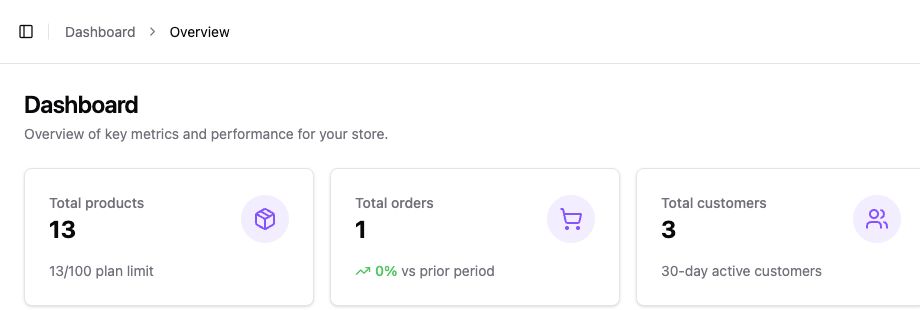
1. Create an organization
Section titled “1. Create an organization”The organization is the business account in Kordiva. It connects your plan, team, and stores.
First complete the application and verification process. Use the approved Business identity when creating your organization; it connects your plan, team and stores.
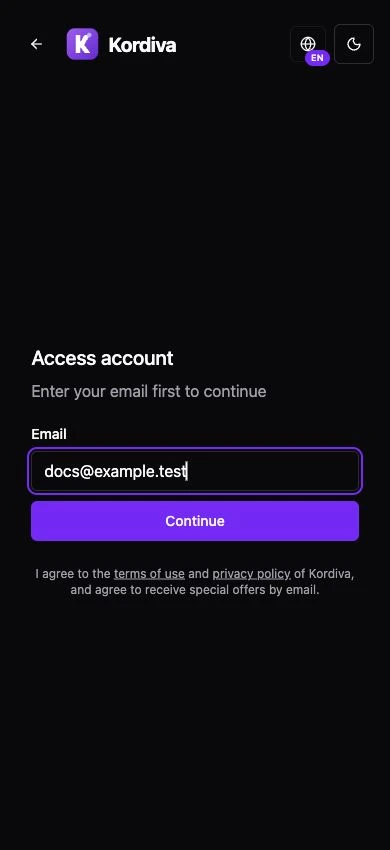
2. Create a store
Section titled “2. Create a store”Set:
- store name;
- unique subdomain;
- MKD, USD, or EUR currency;
- basic description;
- starting theme.
You do not need a custom domain on day one. You can start with a Kordiva subdomain and connect your own domain later when supported by the plan.
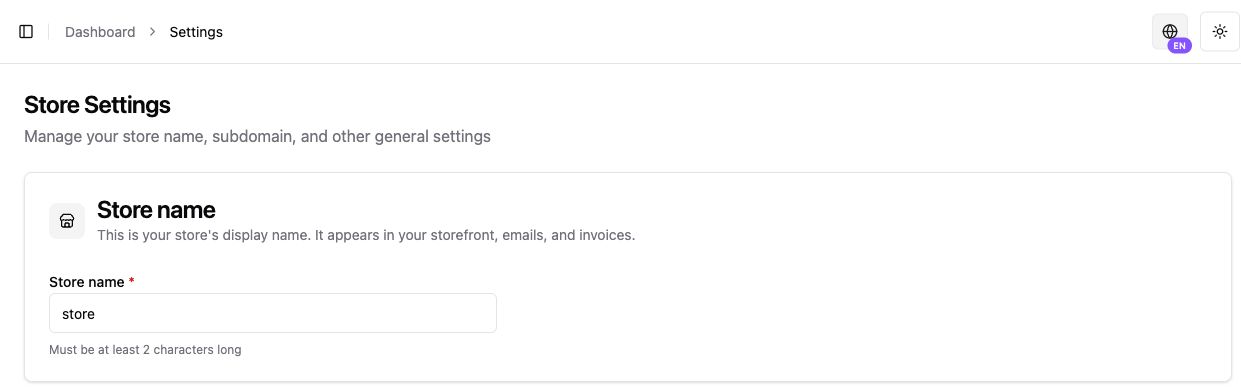
3. Create your first product
Section titled “3. Create your first product”Complete one product end to end:
- name and description;
- price;
- primary image;
- SKU if you use one;
- inventory quantity and tracking;
- tax class;
- fulfillment type: physical, digital, or deposit;
- variants when the product has size, color, or another option.
Create the product first. Then create a Checkout Link or add the product to the storefront.
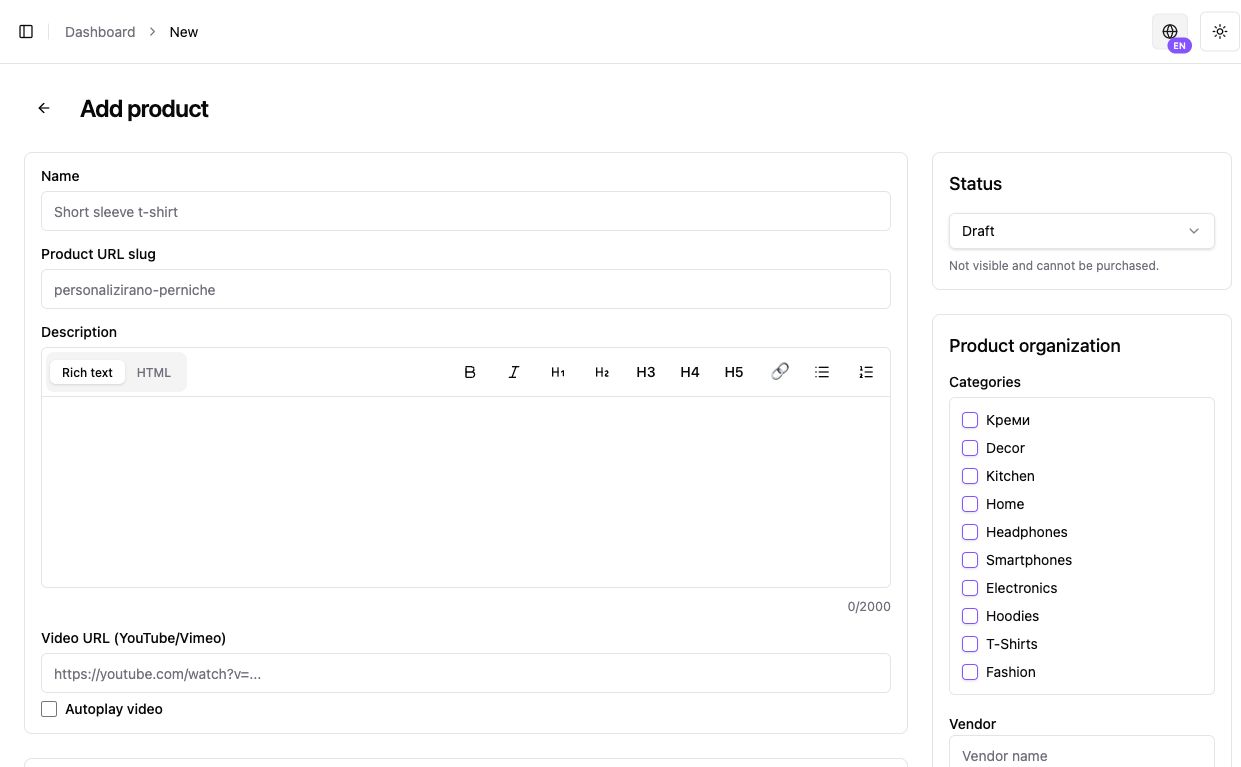
4. Connect payments
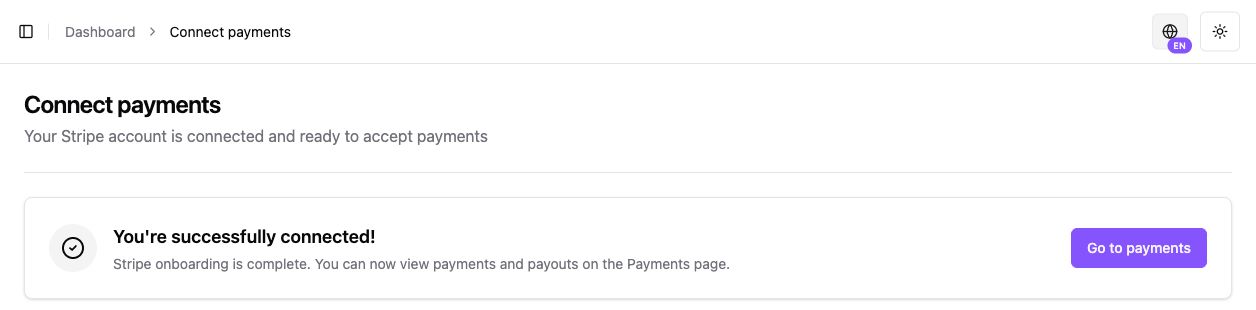
Section titled “4. Connect payments”Start Stripe Connect onboarding from Payments.
Payments are not active simply because the store exists. Complete the required steps and confirm that Kordiva shows payments as active before live selling.
5. Choose how to sell
Section titled “5. Choose how to sell”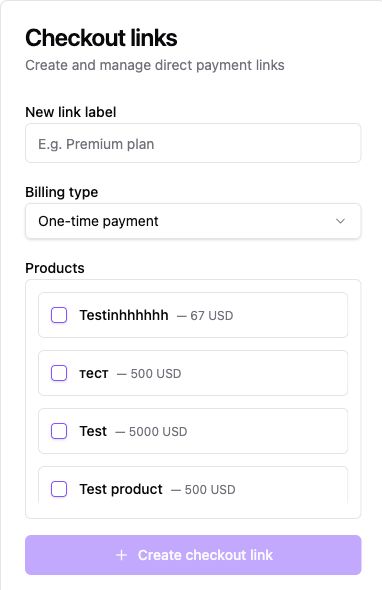
6. Set the design
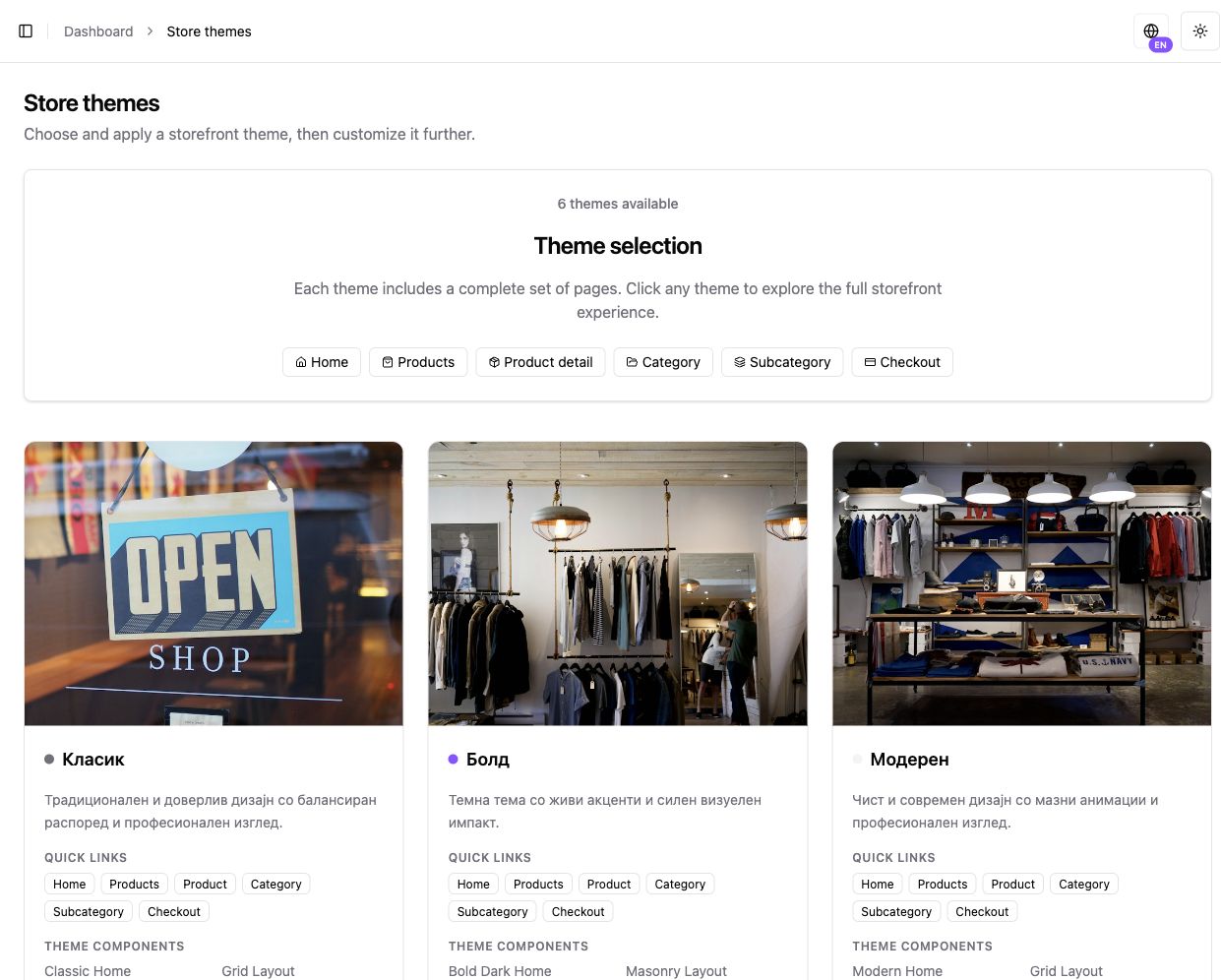
Section titled “6. Set the design”Choose one of the six theme families and configure logo, colors, typography, banners, and page sections.
Always check the storefront on a mobile device before sharing it.
7. Configure shipping, tax, and legal information
Section titled “7. Configure shipping, tax, and legal information”Before the first live order, verify:
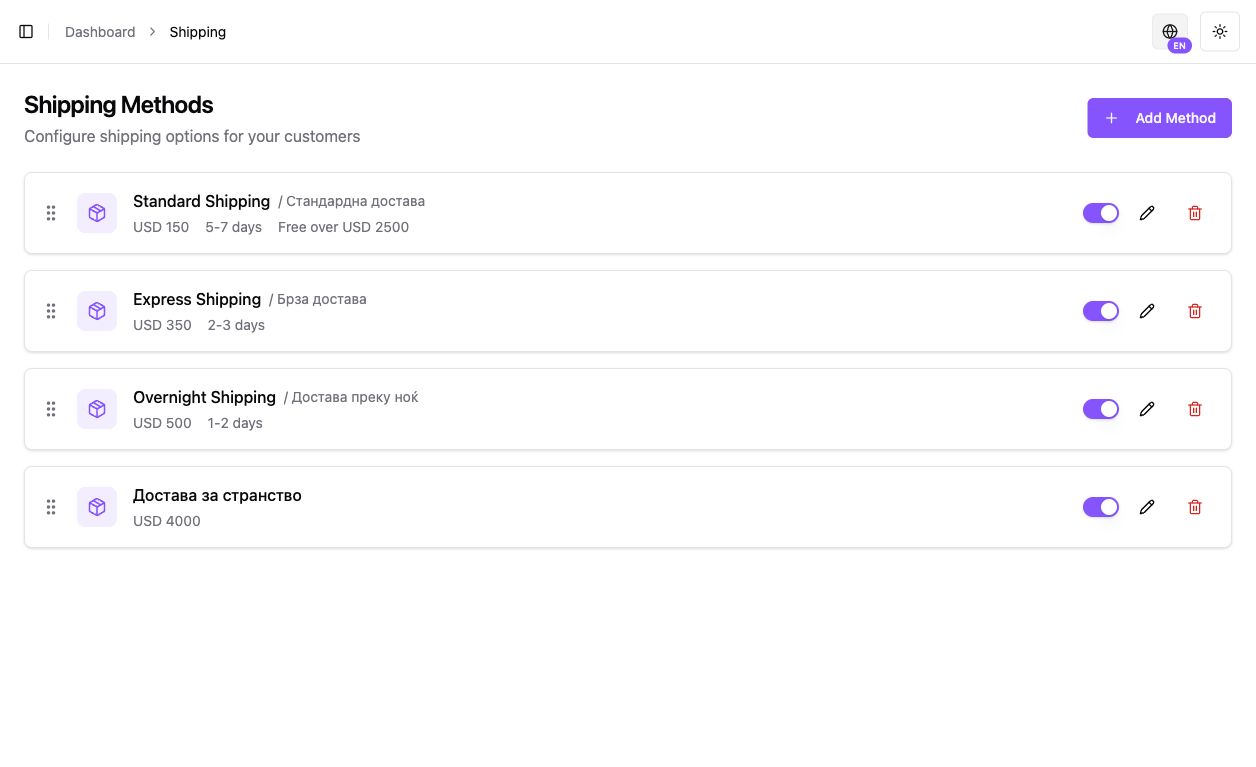
- shipping methods and prices;
- free-shipping rules;
- tax rates;
- legal business information;
- privacy policy;
- sales terms;
- returns and refund policy;
- support contact.
8. Test the full journey
Section titled “8. Test the full journey”- Open the store or link as a customer — Check the product, price, language, and mobile layout.
- Review checkout — Confirm amount, currency, shipping, and tax.
- Review the order in Kordiva — Payment status and order status are separate and should both be clear.
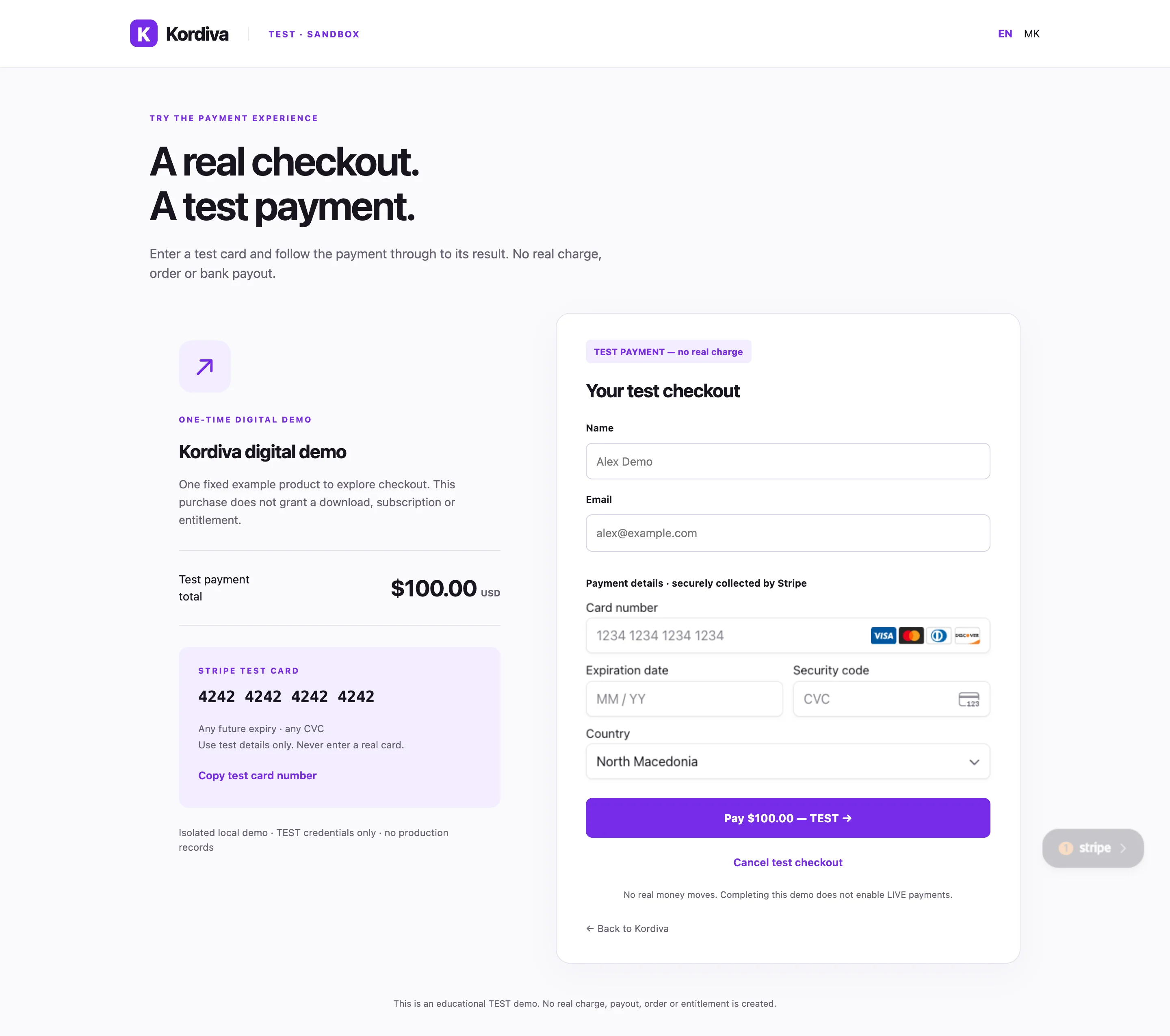
This is the real isolated TEST payment demonstration. It does not show store creation, a product editor or a completed store order. Follow the TEST checkout walkthrough for the controls and result states.